
The guide
How to use it.
From a card full of RAW to smaller, checked RAW copies in four steps. Every picture here is the real app.
Before you start
- An Apple silicon Mac with macOS 14 or later.
- Nikon Z video in R3D NE (.R3D) or N-RAW (.NEV).
- Space for the new files. Raw Compact never changes or moves your originals, so keep them until you’ve checked the copies.
The first time you open Raw Compact it asks whether to check for updates automatically. If you say yes, it checks each time you open it (and about once a day while it stays open) and shows what’s new before you install. You can change that any time in Settings ▸ Updates.
Trial or licence. The trial lets you try every compression level, test frames, Compare, scopes, 4K compare, fit-to-drive, watch folders and card offload on your own footage; what it writes carries a RAW COMPACT TRIAL watermark. A licence gives you clean files, and Convert-only (no compression) is full-version only. After you buy, your licence key arrives by email: click the gear icon at the top right, then Your copy ▸ Enter licence key… and paste it. One licence works on one Mac at a time, and a paid licence can be activated up to 5 times in total.
1Add your clips
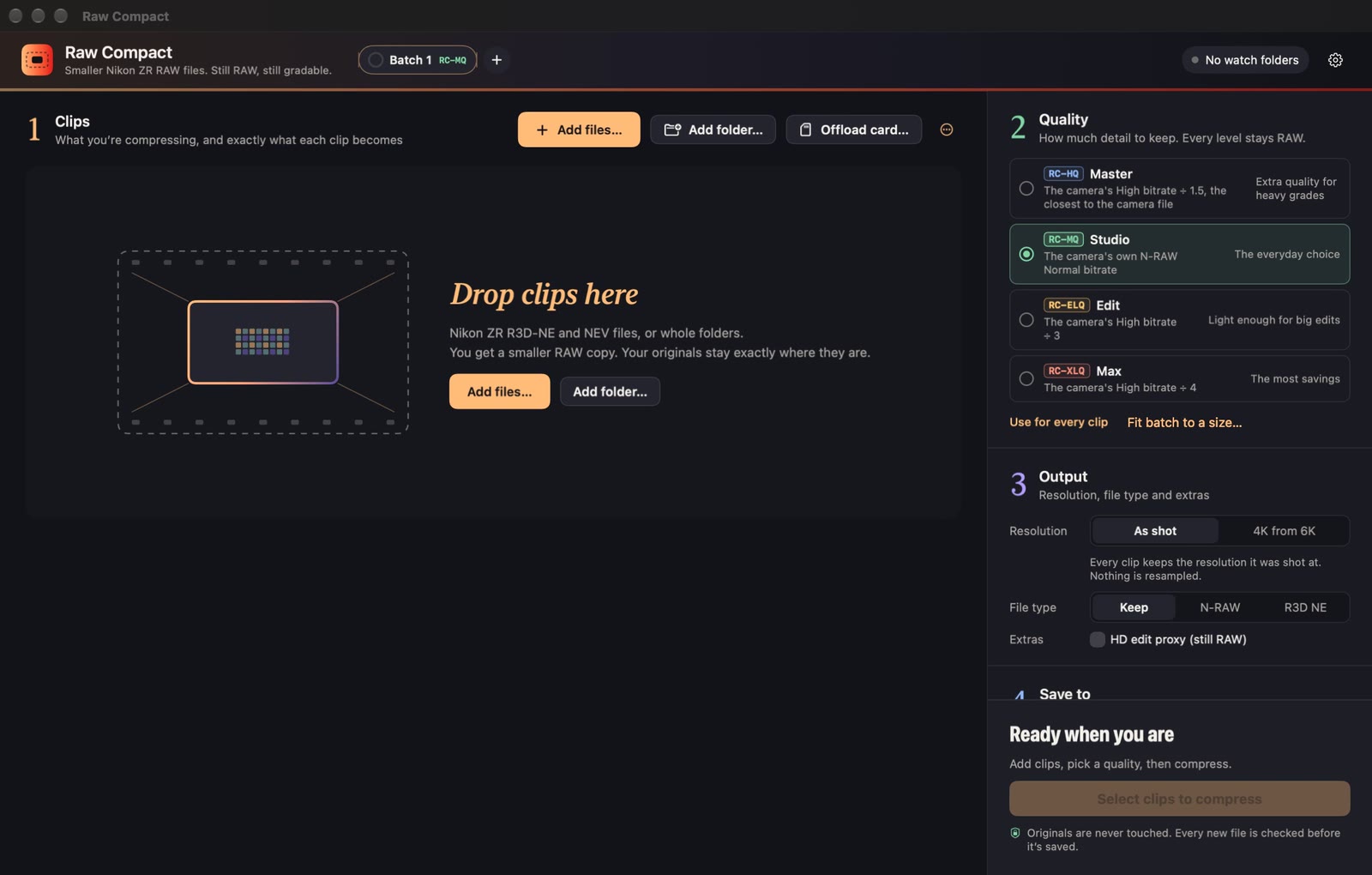
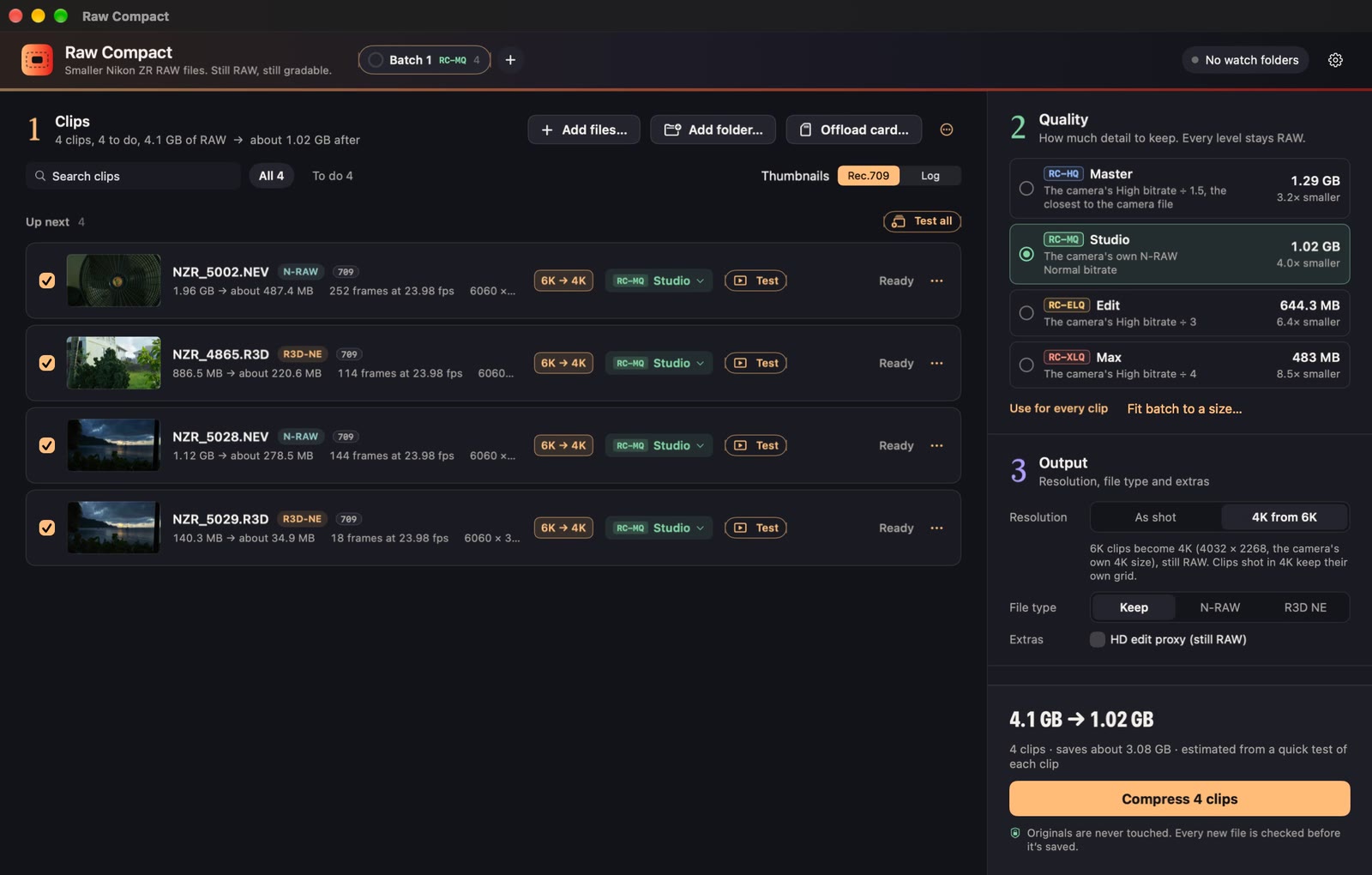
- Drag clips or folders onto the window, or use Add files… and Add folder…
- Offload card… sets up a whole card as one batch (see Let it run itself).
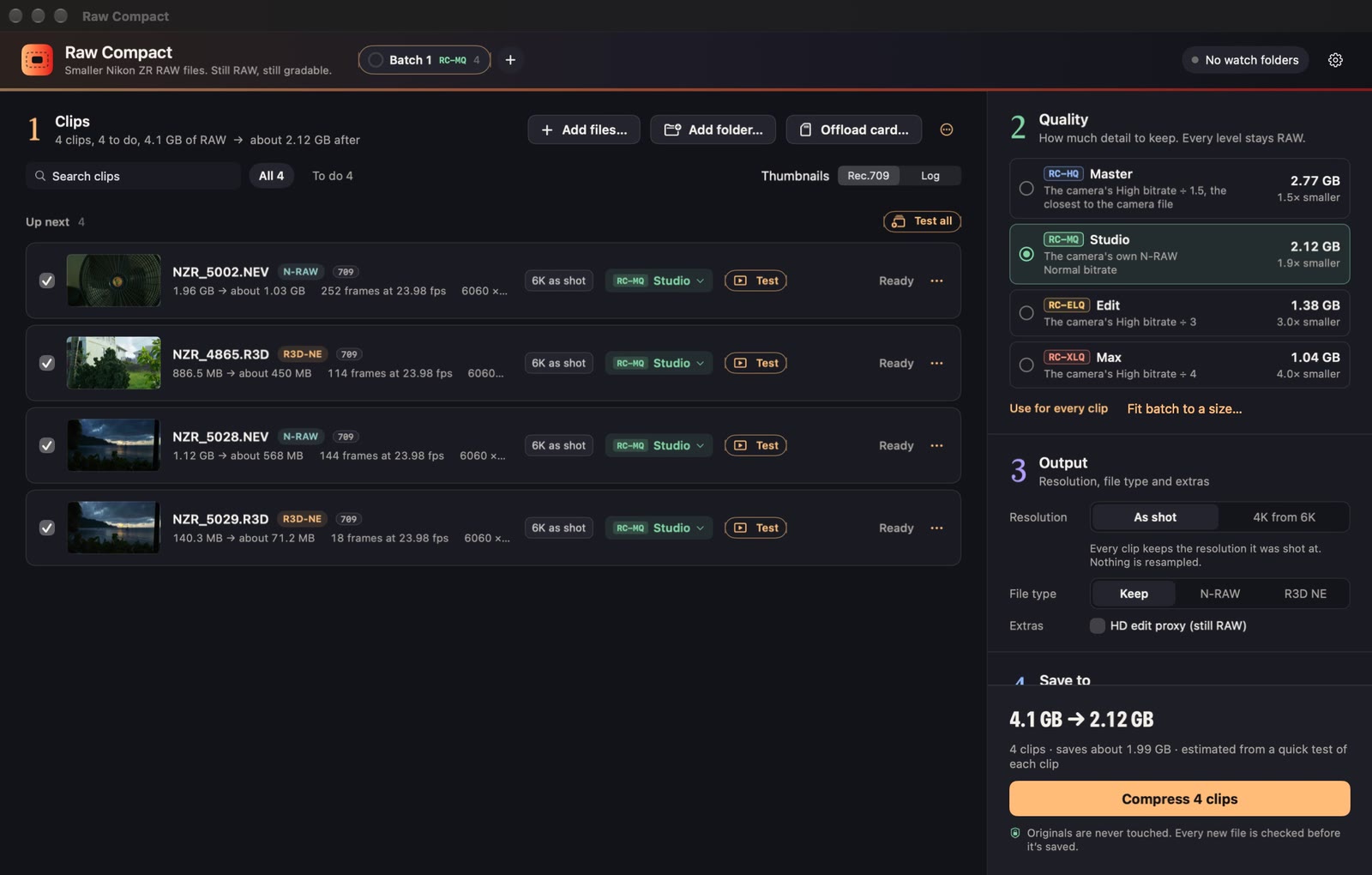
- Each clip shows what it becomes before anything runs: its size now and after, its resolution, and its level. The “after” size is an estimate from a few sample frames.
- Above the list you can search, and filter by All, To do, Finished or Needs attention. A clip recorded at N-RAW Normal is badged NORMAL (see step 2).
2Pick a level
Every level stays RAW. Each one is set by your camera’s own bitrates, and the panel shows the size it would give this batch.
| Level | Size | Use it for |
|---|---|---|
| Master | About High ÷ 1.5 | Heavy grades, closest to the camera file |
| Studio | The camera’s own Normal | The everyday choice. Start here |
| Edit | About High ÷ 3 | Light enough for big edits |
| Max | About High ÷ 4 | The most savings |
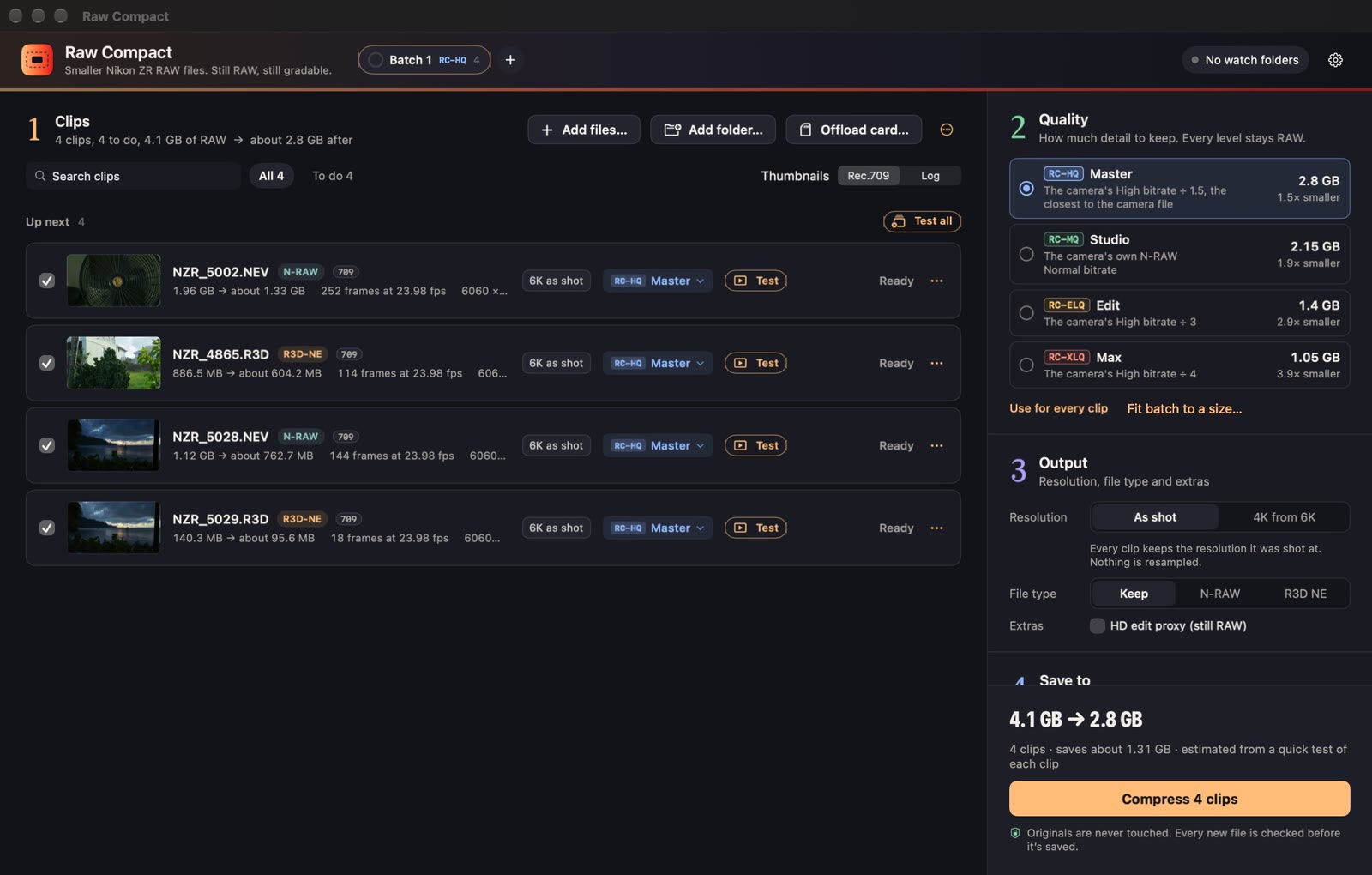
Not sure? Fit it to a drive. Choose Fit batch to a size… and pick 256 GB up to 8 TB, the free space on your Save to drive, or a custom size. Raw Compact picks each clip’s level, best quality first, and re-plans after every clip. If even Max won’t fit, it tells you how much space the batch needs. Choosing a level yourself turns Fit off.
Detail guard
The Quality step has Detail guard: automatic, on by default. After the quick test, Raw Compact checks sample frames of each clip for streaking, lost fine texture and shadow tint. Where a level’s size would cause them, that clip is kept finer, and the clip shows a DETAIL GUARD badge with the reason, such as a high ISO or a clip recorded at N-RAW Normal. Some clips therefore come out larger than the level’s size; the size panel already includes this, and under a level you may see N kept finer. To switch the guard on or off for one clip, use its output menu in the queue or the checkbox in Compare; select several clips and use the queue’s ··· menu to change them together.
Turn it off and every clip lands on its level’s size, but heavier levels can streak skin on demanding footage.
Clips recorded at N-RAW Normal
N-RAW Normal is already about half the camera’s High data rate, so Edit and Max often can’t go much smaller than Studio on those clips. Raw Compact marks them NORMAL · USE STUDIO and shows a card, “N clips were recorded at N-RAW Normal”, with a Use Studio for these N clips button. Test a frame before you choose a heavier level.
✓Test before you commit
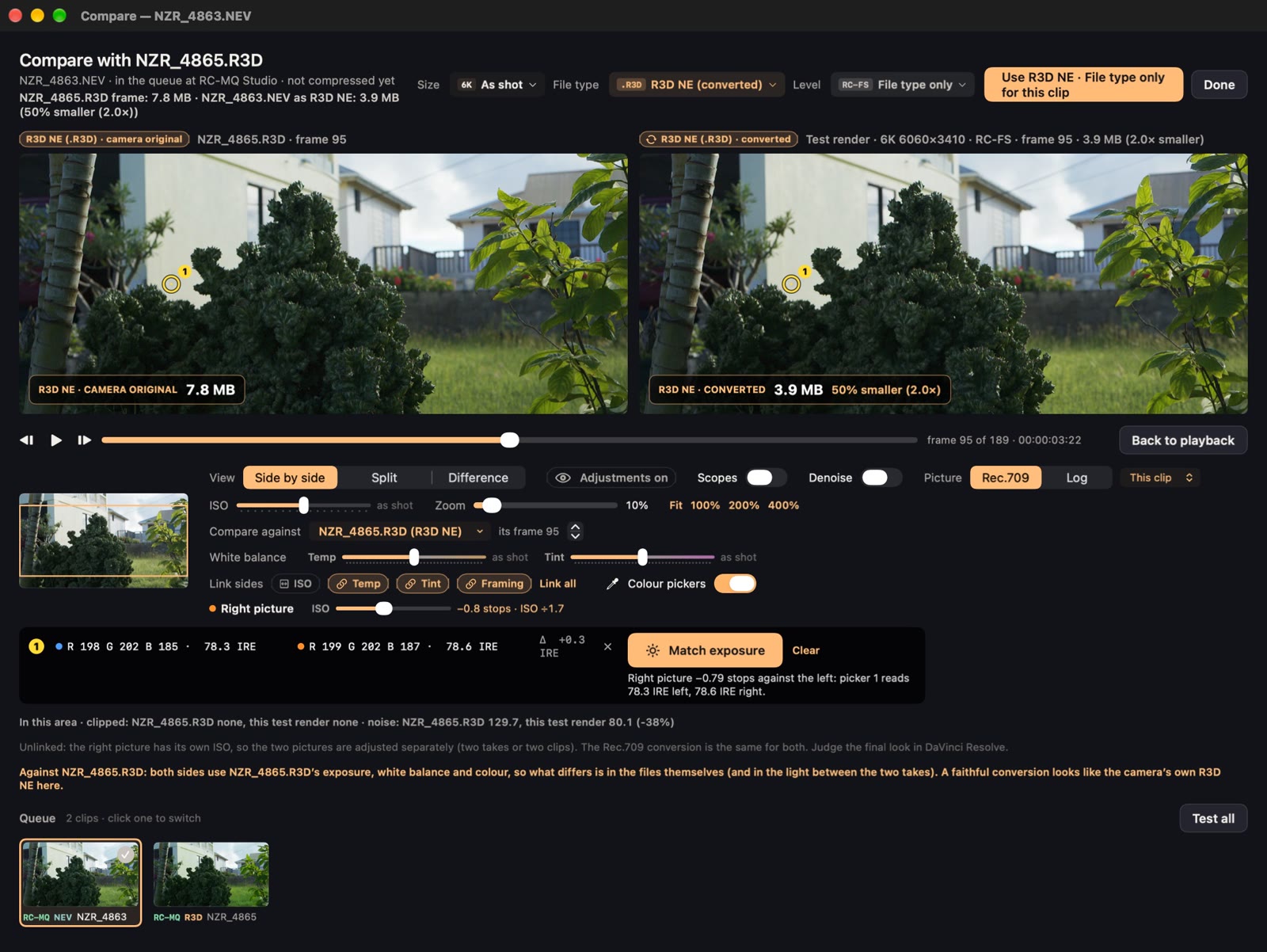
Press Test on a clip to open Compare. Play or step to a frame, then press Test this frame. Raw Compact compresses five frames around it with the same settings as the full export, and shows them next to the original. Nothing is saved.
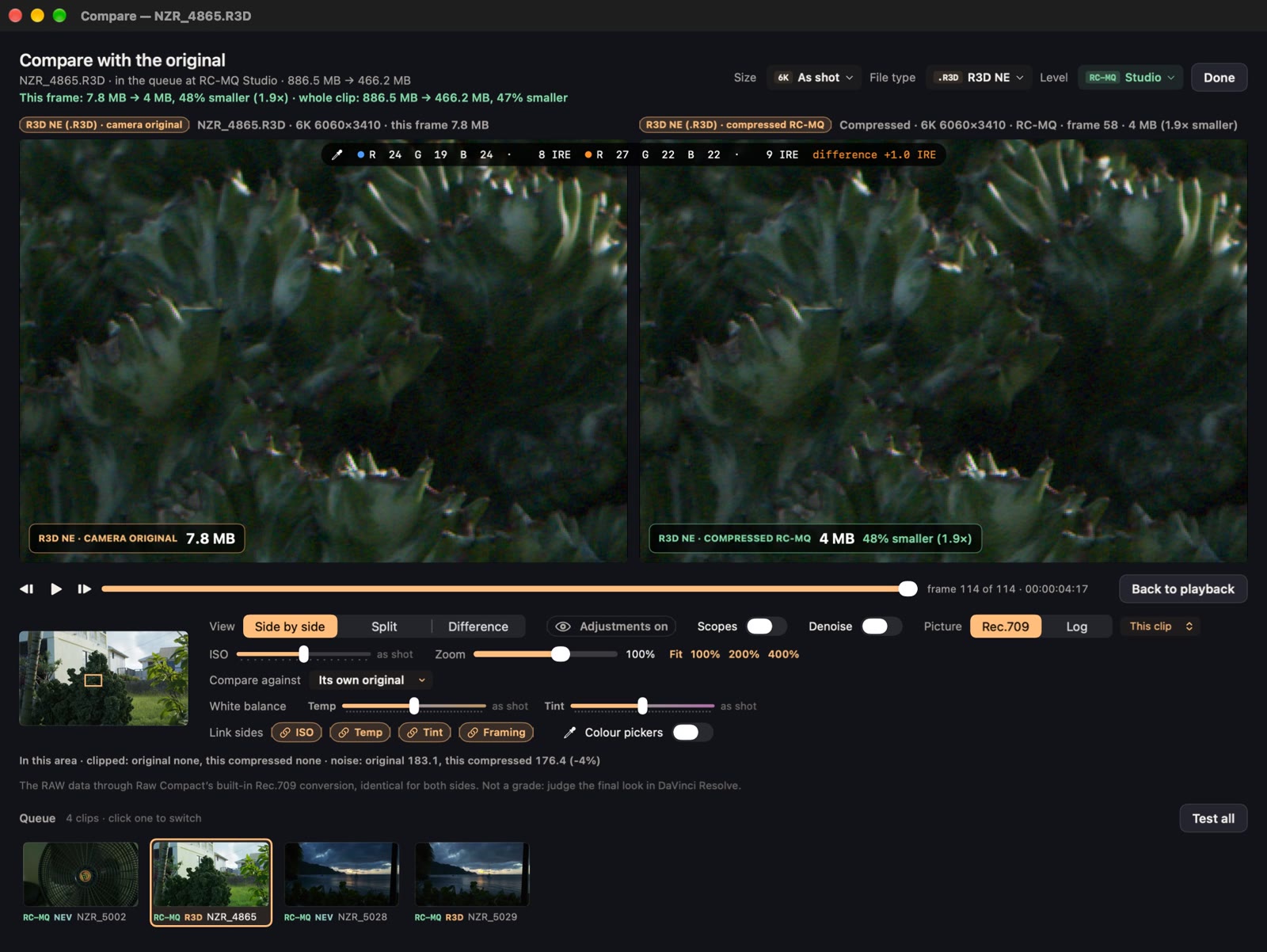
- View: Side by side, Split (drag the line) or Difference (black means no difference; the difference is amplified 8×).
- Zoom: Fit, 100%, 200% or 400%. Click a picture to look somewhere else.
- Picture: Rec.709 or Log, the same on both sides. It’s a preview, not a grade. Add your own .cube LUT under Settings ▸ Thumbnail LUTs, or use Raw Compact’s built-in Rec.709.
- Scopes (⇧⌘S): waveform, RGB waveform, parade, vectorscope, histogram.
- Colour pickers (⇧⌘P): read RGB and IRE at up to three spots on both sides. Both shortcuts work while the Compare window is in front.
- Happy with a different level, size or file type? Pick it at the top and press Use … for this clip.
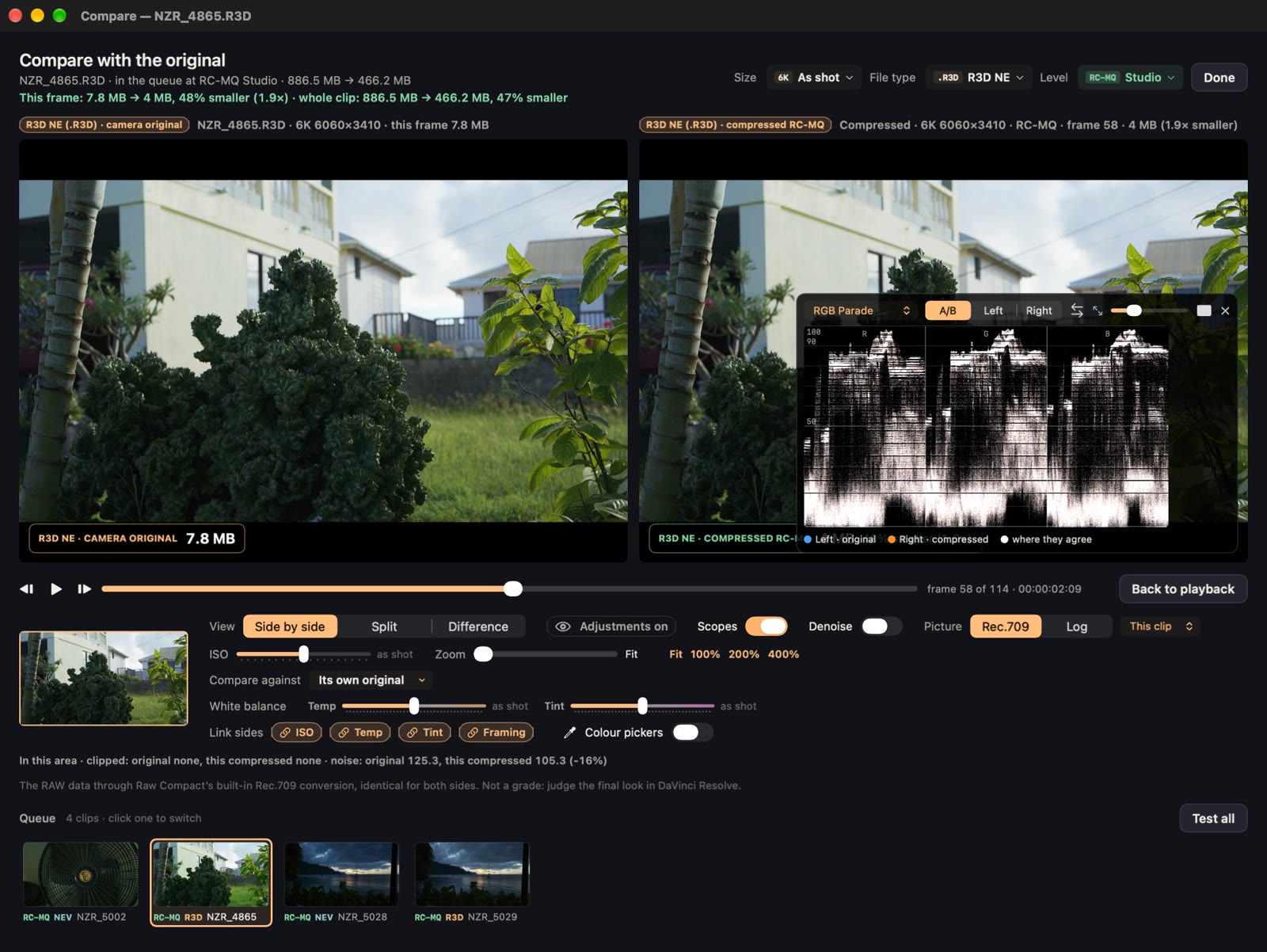
Test all at the top of the list does a few frames of every clip, one after another, so you can flip through the whole batch.
Size, ISO and white balance. The Compare window also has Level, File type and Size menus, ISO and white-balance sliders (preview only), Match exposure, and a Denoise option for judging noise.
3Choose the output
- Resolution: As shot keeps every clip’s size. 4K from 6K makes 6K clips 4032 × 2268, still RAW. Clips already in 4K keep their size.
- File type: Keep, N-RAW or R3D NE. Converting rewrites each clip as the other type; it is our closest approximation of the camera’s own file of that type, so check it in Compare.
- Convert only, don’t compress: appears once File type isn’t Keep. It changes the file type and keeps about the original size. It re-encodes, so it is lossy too, though far less than a level.
- Extras: an HD edit proxy (a 1920 × 1080 RAW copy) in a Proxy folder. When you add whole folders, you can also back up the original RAW and copy every other file, each checked.
4Save and compress
- Save to: choose a folder. The bar shows how much space the batch needs and what’s left.
- New files get a level in their name, like
_RC-MQ(4K files add_4K, trial files add_TRIAL). A name that’s taken gets a number. Nothing is ever overwritten. - Checks: Thorough is the default. Every written file is decoded again by an independent check. Maximum checks every part of every frame, Thorough about 1 part in 8, Fastest about 1 in 32. The file is the same either way.
- Press Compress (⌘↩).
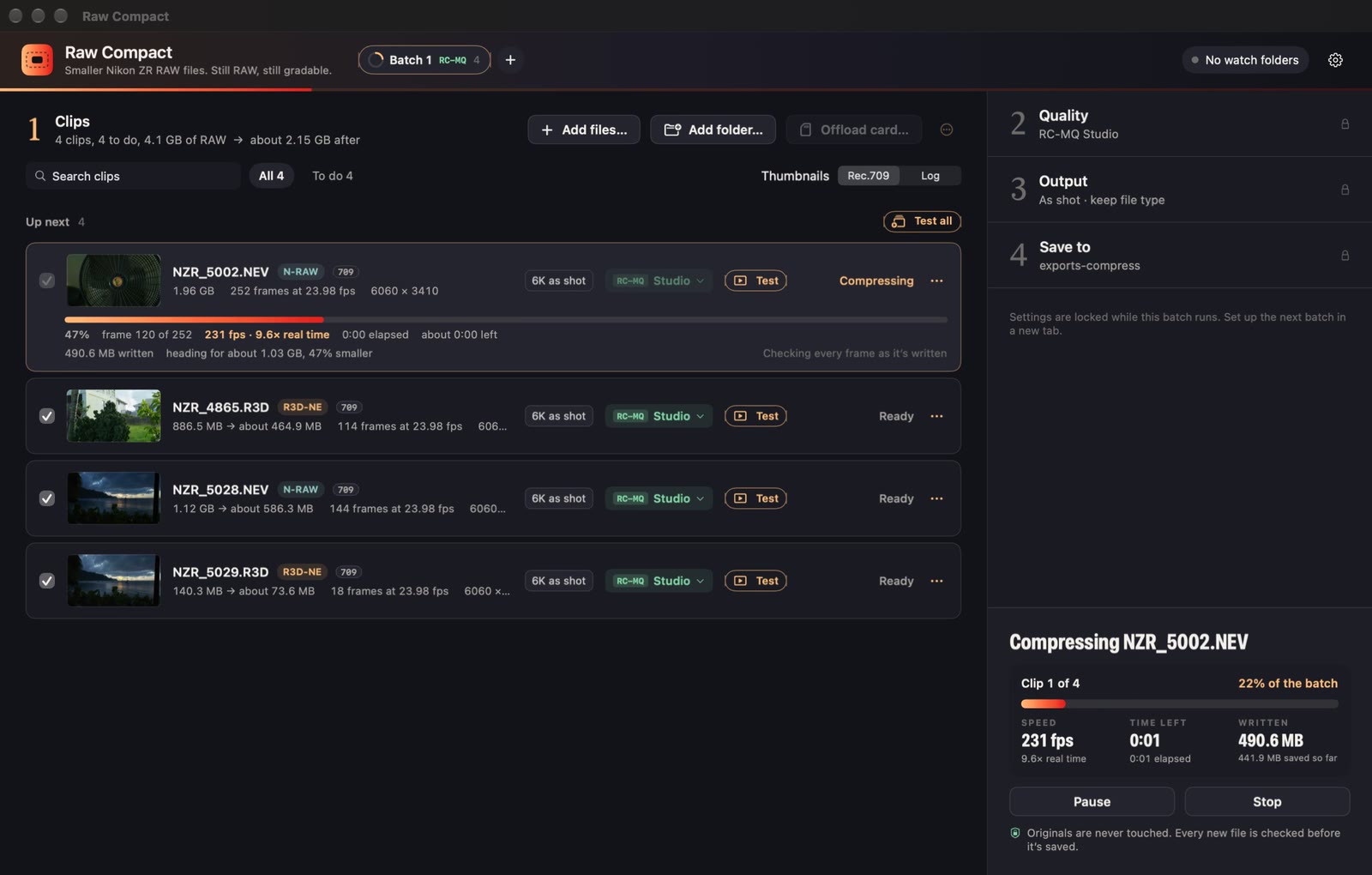
- Pause stops at once. Resume carries on from the same frame.
- Stop asks whether to stop after this clip or stop now. Finished clips are kept. Stopping now discards the clip in progress and removes its unfinished file; nothing is left behind.
- Settings lock while a batch runs. Press + (or ⌘T) to open a new batch tab and set it up, then press Queue N clips next. It starts when this one finishes, and Don’t start cancels that.
- A clip that fails a check never gets its real file name and is removed, so nothing unfinished stays on disk. Your original is untouched. The clip says what happened and what to try; if it keeps happening, choose Send Problem Report… in its … menu.
★When it’s done
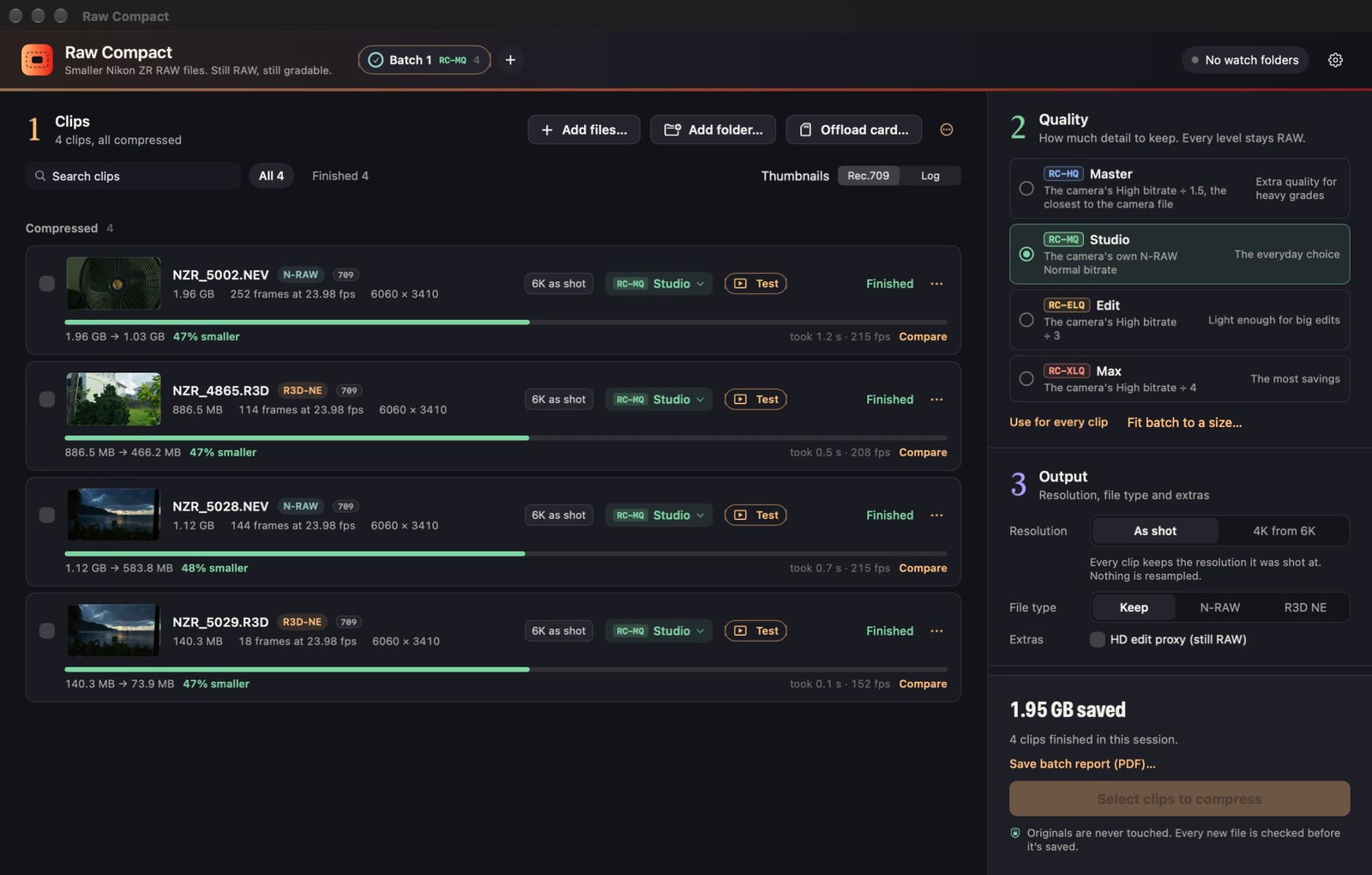
- Compare with the original… on a finished compressed clip opens the real export next to the original. (Convert-only clips have no Compare button; use Test in the Compare window to preview a conversion.)
- The … menu on a clip: Show compressed file, Show original, Save verification report… (for clips finished this session), Try every level on this clip, Make support excerpt, Send Problem Report… and Remove from queue. Try every level sets up a new batch tab with the whole clip at all four levels; press Compress to make them, then compare in your editor.
- Save batch report (PDF)… lists every clip, before and after, the level used, and the checks that ran. Good for clients and DITs.
- Want a notification when a batch finishes? Turn on Notify me when a batch finishes in Settings. It’s off by default.
- Grade the new files in your RAW editor as usual. Keep your camera masters until you’ve checked them.
∞Let it run itself
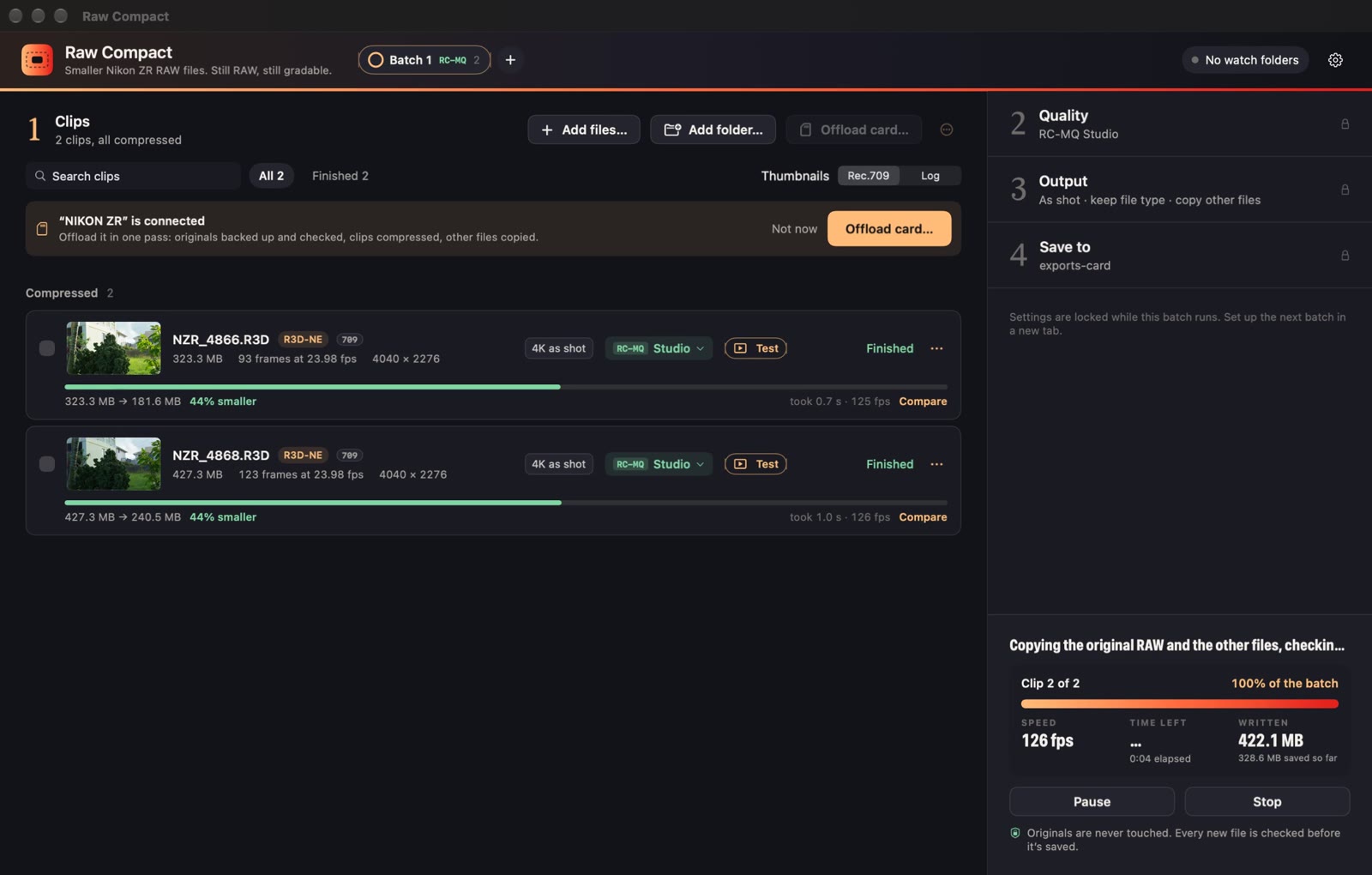
Offload a card
Connect a card and Raw Compact offers to offload it. Choose Offload card…, pick the card, and one sheet shows every option before anything starts: level, resolution, file type, Detail guard, HD edit proxy and where to save, plus start compressing as soon as the card has been read (on), keep a checked copy of the original RAW (on), copy the card’s photos, audio and sidecars with their folders (on), and delete the originals when everything is checked (off). A summary underneath says exactly what will happen. Save your choices as a preset and a repeat offload is: connect, Offload card…, pick the preset, Offload. Deleting the originals is never saved in a preset; you tick it each time.
The clips are compressed first, then the original RAW is copied into an Original RAW folder inside Save to, and every copy is checked (SHA-256). Raw Compact never formats your card. Unless you chose to delete the originals, it also never erases anything on it: when the summary says every file was copied and checked, you can format the card in the camera.
Delete originals is part of the full version (trial files are watermarked, so it is switched off there) and is off every time. When you tick it you get a clear warning. After the batch, only files that passed every check are offered for erasing: a clip’s original, only once its compressed file is complete and checked and its backup copy matches byte for byte; a photo, audio or sidecar file, only once its copy matched. Raw Compact then shows the exact numbers and you confirm before anything is erased. Anything that did not pass stays on the card, and a log of what was erased is saved with your files. Cards have no Trash, so erased files cannot be recovered. If you turn the backup off, the compressed file becomes the only copy: check your level on a test frame first, and you will be asked to confirm that.
Watch folders
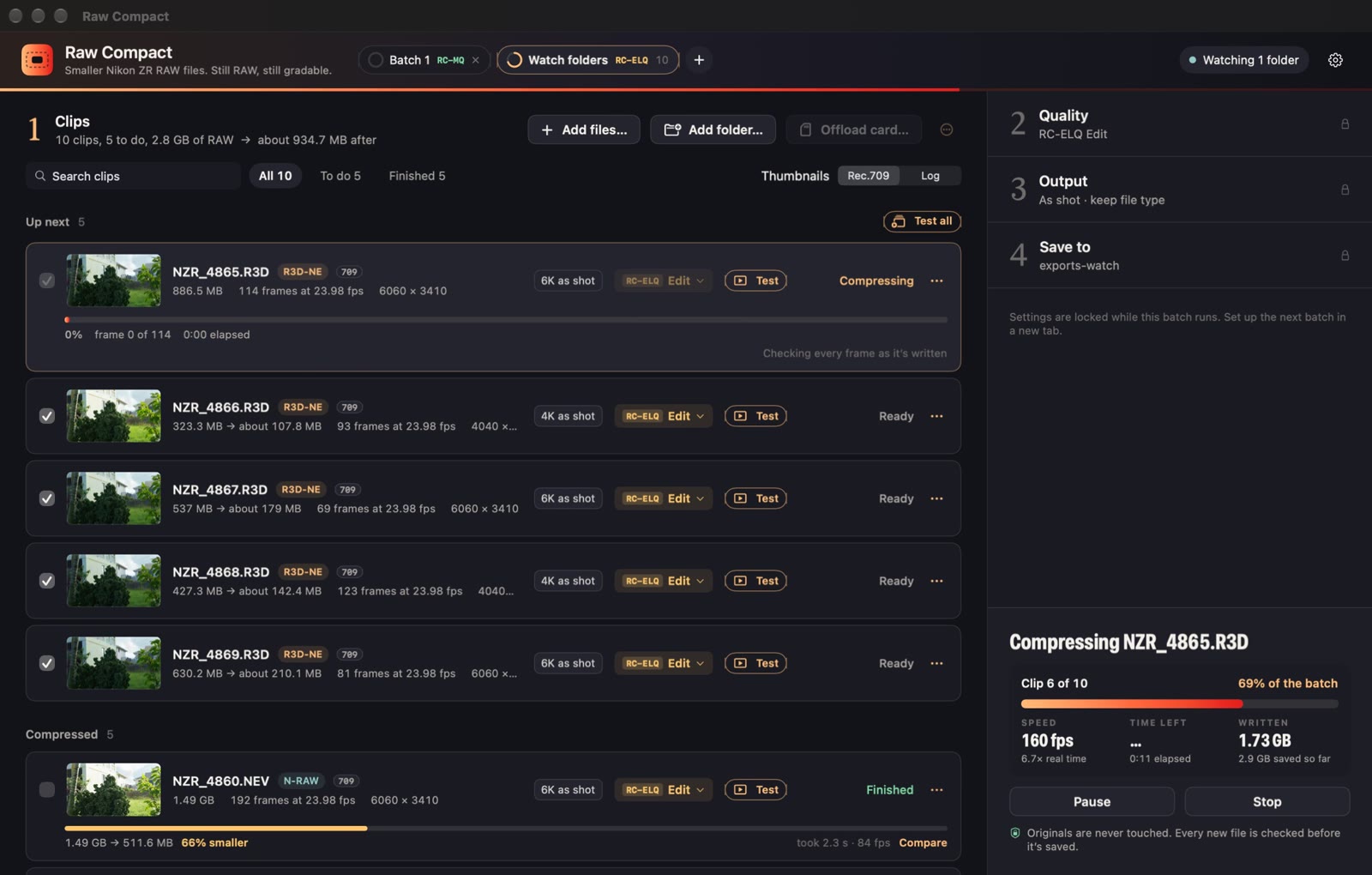
Watch folders have their own window: click the watch button in the toolbar, or choose Raw Compact ▸ Watch Folders…. Turn on Compress new footage that appears in these folders, add folders and choose a preset (level, resolution, file type, Detail guard, Save to). A new clip is picked up once it has stopped growing for about 10 seconds, then a five-second countdown starts that you can cancel with Don’t start. Closing the window keeps watching from the menu bar.
Settings
Click the gear icon at the top right. There’s no Settings menu item.
- Your copy: trial or full version, Enter licence key…, Check my licence, Find my licence and Deactivate this Mac….
- Updates: the automatic-check switch and Check for Updates Now. Check for Updates… is also in the Raw Compact menu.
- Watch folders: folders, the preset, and when they were last scanned.
- Thumbnail LUTs: add your own .cube LUT per format for thumbnails and Compare.
- Safety check: the Checks setting.
- When Raw Compact opens and finishes: restore the last queue on launch, keep the folder structure when adding folders (on by default), keep original file names (off by default; the level suffix is then left off), and notify me when a batch finishes (off by default).
- Help menu: Raw Compact Guide, Send Problem Report…, Contact Support… and Save Support Info… A problem report has your Mac model, clip file names, settings, error details and logs, sealed so only Raw Compact’s developer can read it. It contains no footage, no pictures and no licence key, and it’s only sent when you press Send Report.
Tips and answers
- Which level should I start with?
- Studio. Test a few frames of your hardest shot (fine texture, skin, shadows) and step down to Edit or Max only if you’re happy with what you see.
- Is it lossless?
- No. Every level is lossy, and the files stay RAW. That’s why Compare exists: check before you keep, and keep your camera masters.
- Will my editor relink?
- Turn on Keep original file names in Settings to keep the camera’s names, and keep folder structure when adding folders.
- Did I already compress this?
- Raw Compact remembers finished clips by a fingerprint of their contents plus your settings, and marks them “Compressed before”.
- Can I move my licence to another Mac?
- Yes: click the gear icon, then Your copy ▸ Deactivate this Mac…, then enter the key on the new Mac. A paid licence can be activated up to 5 times in total, and moving uses one. Lost a Mac? Email support and we’ll reset it; the old seat can take up to 7 days to free.
- Does it work offline?
- Yes, for up to seven days after an online licence check. Raw Compact never sends your footage anywhere.
Still stuck? Support or [email protected].